
aspsms.com Newsletter, 12.2010
Customer information Dear Joachim von Watt As a registered client of ASPSMS youget the latest information about our newly available SMS applications. Contents |
Christmas and New Year's Eve We recommend to check your credits balance and if necessary place an order.
We wish you a merry Christmas and already a good start in the new year 2011! Your ASPSMS Team |
Advertising news.ch - Online News Portal  Here's the News: news.ch |
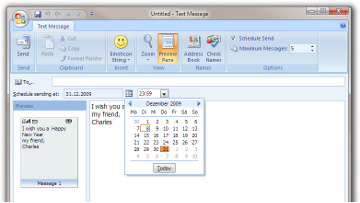
Send Season's Greetings by SMS Post your Christmas and New-Years SMS with a deferred delivery date. The ASPSMS will deliver the messages at the specified date and time. With Microsoft Outlook 2007 Mobile Service and smsblaster.com you can schedule Short Messages to a specific date and time? With Outlook 2010 does not support scheduling SMS anymore. If you are an Outlook 2010 user, please see our alternatives. In case you have not set up the Microsoft Outlook 2007 Mobile Service yet you can find a detailed instruction here.
Alternative: » SMSBLASTER.COM web edition:www.smsblaster.com/ » SMS Blaster 1.41 for Windows:SMS Blaster You can find even more applications here:3rd-Party Solutions |
Anzeige Seite3.ch - Das Boulevardmagazin  Seite3.ch ist ein Boulevardmagazin der alten Schule. Auf Seite3.ch kommen keine Meldungen, wie sie alle News-Seiten einander abschreiben, sondern die anderen, wirklich spannenden News. Lesen Sie hier weiter: www.Seite3.ch |
List your ASPSMS application at our 3rd-party solutions! Take the chance and additionally advertise your own ASPSMS based softwaree.g. your content management system or your branch specific solution thatsends SMS through the ASPSMS system on: That's how it works:
Examples for an listing on ASPSMS 3rd-party solutions: |
Products based on the
Applications
Credit Warning
|

| Factsheets | |
|---|---|
| Purpose and business examples | |
| SMS tools for End Users | |
|---|---|
| Name | Pricing |
| SMS Blaster Winlog | free |
| Microsoft Office Outlook 2013-2016: Email to SMS | free |
| Microsoft Office Outlook 2010 Mobile Service | free |
| Microsoft Office Outlook 2007 Mobile Service | free |
| SMSBLASTER web edition | free |
| SMS Blaster Windows Edition | free |
| SMS touch for iPhone and iPod touch | Shareware |
| ECO-SMS - Ökologische SMS! | Shareware |
| Cybersystems mscrmSMS | see price list for details |
| Jabber-Client Chatopus for Palm OS | small one-time payment |
| delight Software GmbH | see price list for details |
| ASPSMS Widget for Mac | free |
| SMS scripts and interfaces for developers | |
|---|---|
| Name | Pricing |
| ASPSMS Dot Net Assembly on NuGet | free |
| ASPSMS JSON API (REST) | free |
| C# Microsoft ASP.NET Identity MVC (for SOAP) | free |
| Node.js interface for ASPSMS | free |
| PHP Class for ASPSMS SOAP web service | free |
| aspsms.dll (Active-X) | free |
| SOAP Web Service | free |
| XML-Interface | free |
| ASPSMS SMTP Interface | free |
| VBscript Class (ASP) | free |
| HTTP | free |
| PHP - Python - C# - Java | free |
| Jabber to SMS for Server Admins | free (open source) |
| SMS Blaster Visual Basic Source Code | free |
| ASPTOKEN | free |
| Network coverage | |
|---|---|
| Supported networks around the world |
Latest News
Switzerland
Supported operators in your country:
Aldi
CoopMobile
Digitec Connect
FL1
Lebara
Lidl Connect
Lycamobile
M-Budget
Mucho
Netplus
OK Mobile
Quickline
Salt
Sunrise Mobile
Swisscom Mobile
Talktalk
UPC
Wingo
Yallo


